Showing posts with label Thursday Tutorial. Show all posts

Thursday, March 22, 2012

{Thursday Tutorial} Working With Digital Stamps

Pin It

Hello, Cathy (scrappycath) here to share a little tip for working with digital stamps.  Krisi has a great set of Spring related sentiments called Write It: Spring Sentiments Digital Stamps in her shop. You can add dimension to your stamps by adding color.

I'm going to show you one way to add several colors to your digital stamps in Photoshop (or elements). As usual, there's always more than one way to do things in PS/PSE. So if you have a favorite way, by all means go ahead and use it!


First, you'll select the sentiment and open that file in Photoshop.  I'm using the "lucky me I have you" sentiment. Duplicate the layer and turn off the original layer.  Working on the copy layer, use the Polygonal Lasso Tool (circled in red in the image above), to draw around the part of the sentiment that you want to separate so that you can recolor it. When you've completely surrounded the item, you'll get those "marching ants" outlining it on your screen. You can see that I've outlined the "lucky me".  From the menu choose Select > Save Selection and give it a name.  Then press Ctrl+J. This will duplicate the selection onto it's own layer.


Click on the copy layer of the sentiment to make it active, then from the menu choose Select > Load > and choose the name of the selection you just saved. This will reload the original item you encircled. Press delete to remove it. Now you have the "lucky me" and the "I have you" on separate layers.


You can add a layer above each of these and clip papers from the kit you are using to recolor them. Or you can simply fill those layers with colors and clip them.  To clip a layer to the digital stamp layers, place the layer of paper or color above the digital stamp layer, then hover the mouse between the 2 layers, press Alt+click. this will clip the top layer to the one underneath.

I used papers from the digital kit that I was working with Lucky Me by Elise's Pieces, to color coordinate the sentiment with the card I created.

Here is a closer look at the sentiment.

If you want to keep a copy of the altered sentiment, be certain to choose File > Save As and save it as a layered .psd or .tif file. Be certain not to save it over the original digital stamp file.

Have fun coloring your digital stamps!

Cathy

Pin It

Thursday, March 15, 2012

{Thursday Tutorial} Shaped Cards: Spring

Pin It

Hi -- Heather (isaacsmom) here. Today I'm going to share with you how to make some fabulous spring cards with one of the fun products that Krisi released last week at Scrap Orchard: Shaped Cards {Spring}. You can find it in the store here.

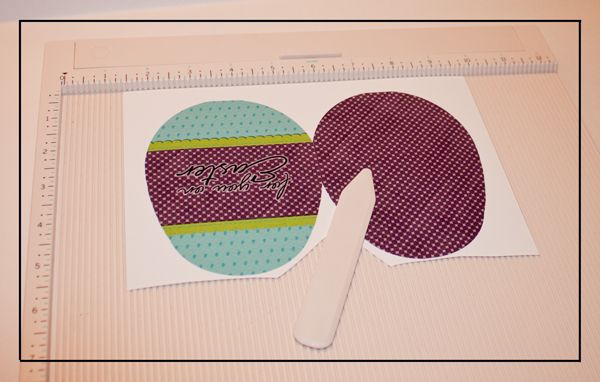
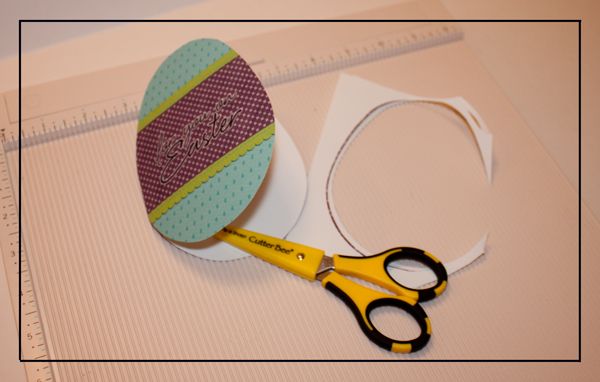
So first off, you choose which one of the cards you want to make, and open the file in your editing program -- I use PSE 10. This template comes in several file forms to suit lots of different needs. For this project, I used the .tiff file. I opened the digital papers I wanted to use and decorated the template. For the egg shaped card, I used the greeting "for you on Easter" which can be found in Krisi's pack of Write It: Spring Sentiments found here. Once I had the templates decorated in my photo editing program, I went ahead and printed them out. The next step is to cut them out. One of the things I found to be helpful with these shaped cards, was to actually score and fold my card before I started actually cutting out the shape. This helped the cutting process go quicker as well.


I always use my Cutter Bee scissors when cutting out my hybrid items. I love how sharp it is and also with the small blade, I can get into the little corners easier.

Once all of my cards were cut out, now we are ready for the fun part -- the embellishment. You will see in my examples shown below, I used several different items to finish off my cards. The first one here - the basket shaped card, I used some red line tape (double-sided very sticky tape) and made one stripe of the tape across the front of my card.

Then, I removed the red part of the tape to expose the other side of the sticky tape. I then took bakers twine and weaved a row of twine back and forth all along the strip of tape to create an effect of grass in the basket.
When I was finished, I used a glue dot to glue on a little digital bird that I had also printed and cut out. It really adds dimension to your card when you create things in layers like this. So, I have the printed card, the layer of bakers twine, and then the little birdie on top.

Here are two examples of basket cards I created: On the second one, I put a strip of ribbon around the whole card and then on the inside, I glued cut out Easter eggs so it looks like the basket is filled with eggs when the card is closed.

Next, I used the egg-shaped card template and decorated, printed and cut per the above instructions. On this card, I used glue dots to glue on 3 buttons. Then I added a tiny bow tied out of the ribbon you see here. It is just a very basic narrow ribbon.

As you can see, adding just these few items adds a lot of dimension.

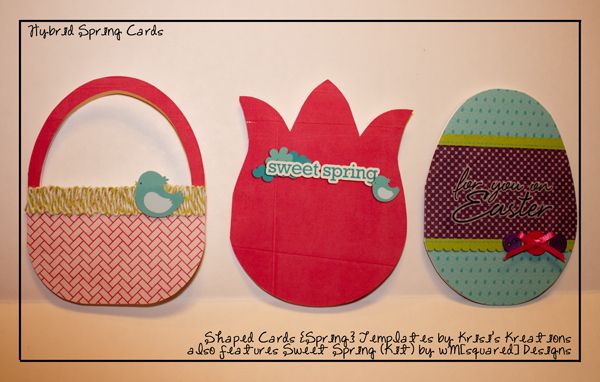
And here is my finished set of cards. Spring is my absolute favorite time of year. I love the fun colors and the awakening of life all around as the cold days of winter pass. I can't wait to send these cards to my friends and family -- I am sure they will brighten their day!
All of the above examples were created using the digital kit Sweet Spring by WM[squared] Designs.

I'd love to see what you create using these Shaped Cards: {Spring} templates. Feel free to link me up in the comments section. Happy spring and have fun creating with these awesome card templates!

Heather (isaacsmom)

Pin It

Thursday, March 8, 2012

{Tutorial Thursday} Recoloring word art

Pin It

This week I released a couple products…
Write It: Spring Sentiments Digital Stamps by Krisi's Kreations

Daily Life: Daily Border Journalers by Krisi's Kreations
and
Shaped Cards {Spring} by Krisi's Kreations

Yep – three things this week – check back tomorrow to see them in action!

I want to show & tell you how to recolor the word art.

If you want to recolor the entire PNG file here is one way that you can do that (there are multiple methods to do this – but this is the way I do it).

In PSE and Photoshop -

Open the file you want to change – it is a PNG file.

Choose the color you want to change it to (using your color picker).

Go to Edit > Fill Layer. Choose a color (a drop-down menu gives you options for color, foreground color, background color, etc). You must have Preserve Transparency checked to
recolor just the word art not the entire layer.

In Microsoft  WORD
Open the file – Insert > Picture > From File to open the .png file.

With the word art selected go to Format > Picture. From the menu on the left select Picture. Find the drop-down menu called Recolor under Image Control. Select the color you want and click ok.

But… what if you want to recolor the word art in two different colors? You can do it in PSE & Photoshop.

recolor1

You need to get the different parts on different layers so to do that, select the first word you want different. You can use the lasso tool or the box selection tool.

recolor2

Once you have the selection around the word(s) you want follow the directions above -

Go to Edit > Fill Layer. Choose a color (a drop-down menu gives you options for color, foreground color, background color, etc). You must have Preserve Transparency checked to
recolor just the word art not the entire layer.

recolor3

Here is a beautiful example from Cathy that shows the word art in two different colors.

FriendsFlowersWEB

Try it and and show us what you create – this works for both hybrid projects and layouts. Link us up and show us what you created!

See you tomorrow!

Pin It